← Back to blog # How to Use the Apify MCP in Claude to Query Doctrine from the Spanish State Prosecutor Office
Learn how to connect the Apify MCP to Claude and use the legaltech/fiscalia actor to search Circulares, Instrucciones and Consultas from the Spanish State Prosecutor Office directly from the chat, simply by asking in natural language.
Searching Circulares, Instrucciones and Consultas from the Spanish State Prosecutor Office (Fiscalía General del Estado) in the BOE.es doctrine search engine means dealing with unintuitive filters and forms that only accept one value per field. In this guide you will learn how to connect the **Apify MCP** to **Claude** so that the assistant itself searches and analyses this doctrine for you, all from a simple conversation.
## ⚖️ What Does the `legaltech/fiscalia` Actor Cover?
The [`legaltech/fiscalia`](https://apify.com/legaltech/fiscalia?fpr=legaltech) actor automates the search for doctrine from the Spanish State Prosecutor Office published in the BOE.es search engine:
- **Circulares** — mandatory guidelines that all members of the Public Prosecutor's Office must follow.
- **Instrucciones** — internal organisation guidelines or guidance on specific matters.
- **Consultas** — responses from the State Prosecutor Office to interpretive questions raised by prosecutors.
It lets you filter by document type, title, full text, year, number and legal subject matter (25 areas, from Immigration or Gender-Based Violence to Cybercrime), and in a second run it can download the full text of the chosen documents together with their validity comment and the legal references they cite.
## 🤖 Tutorial: Connect Apify to Claude and Start Querying
Thanks to the **Model Context Protocol (MCP)**, Claude can connect to external tools such as Apify. This means that, instead of filling in the BOE.es form by hand, you can ask Claude in natural language to retrieve the doctrine you need and work with it.
### **Step 1: Create an Apify Account and Get Your Token**
The first thing you need is an Apify account. The free plan provides enough monthly usage credits to run the actor.
<br>
<a href="https://console.apify.com/sign-up?fpr=legaltech" target="_blank" rel="noopener noreferrer" style="display: inline-block; padding: 10px 20px; font-size: 16px; font-weight: bold; text-align: center; text-decoration: none; color: #ffffff; background-color: #6B46C1; border-radius: 8px;">
Create a free Apify account
</a>
<br>
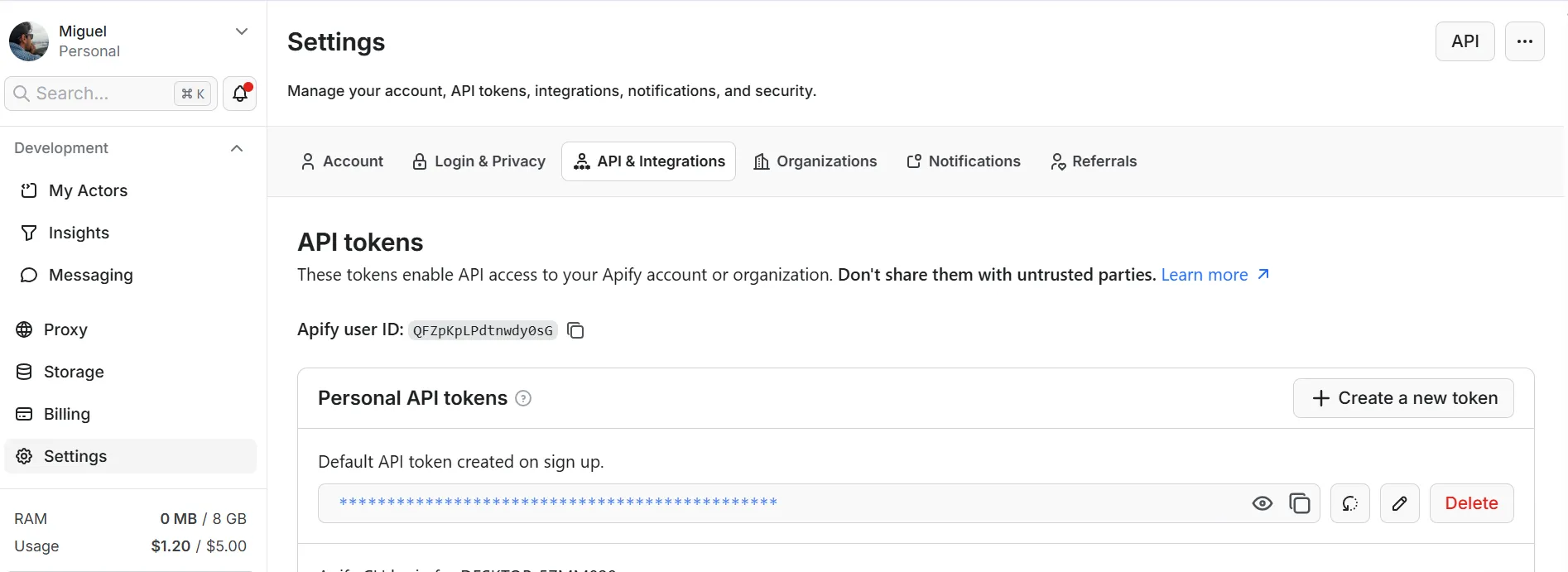
Once inside, go to **Settings → API & Integrations**, click **Create new token**, and copy it.

### **Step 2: Download Claude Desktop**
Download and install the Claude Desktop app from [claude.com/download](https://claude.com/download). This desktop version is the one that allows you to add external MCP connectors.
### **Step 3: Install the Apify Connector and Paste Your Token**
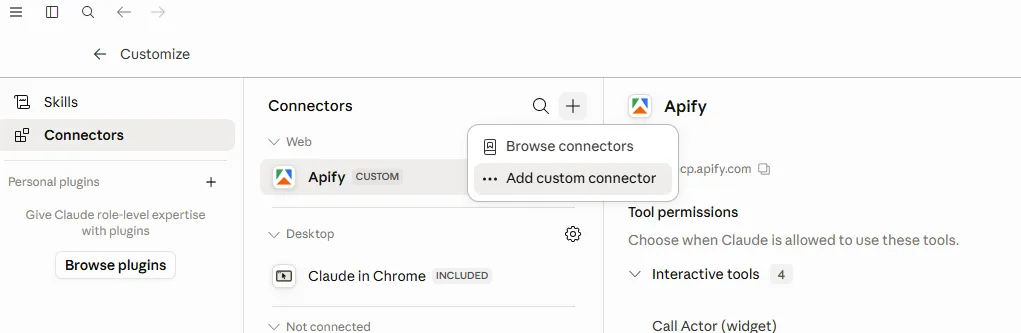
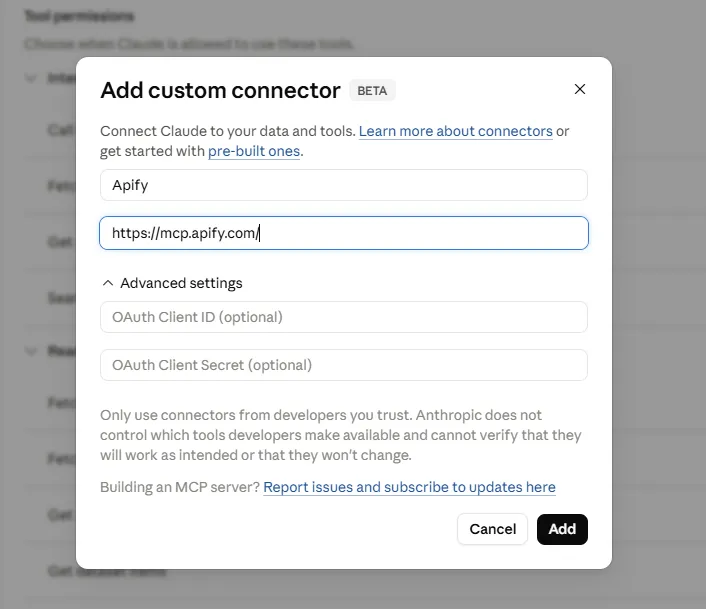
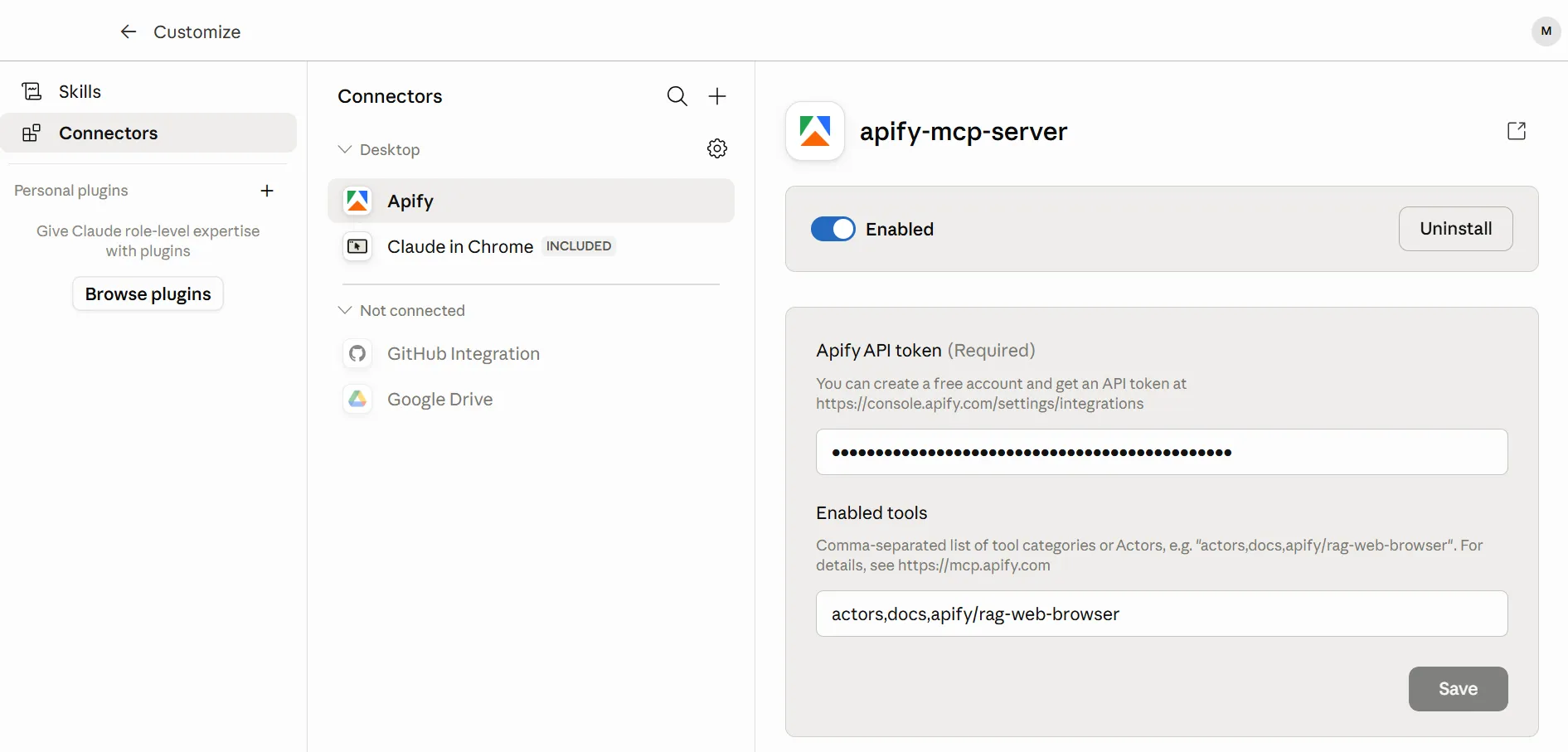
Open Claude Desktop, go to the connector settings, and select **Add custom connector**. Enter the Apify MCP URL and paste the token you copied in the previous step.


https://mcp.apify.com/?tools=actors,docs,runs,storage,tasks,legaltech/cendoj,legaltech/hacienda,legaltech/tribunal-constitucional,legaltech/tjue,legaltech/fiscalia,legaltech/catastro,legaltech/ine,legaltech/aepd

With this you now have access to all LegalTech actors from Claude: `legaltech/fiscalia`, `legaltech/cendoj`, `legaltech/tribunal-constitucional`, and many more.
> 📱 **Bonus:** Once the connector is set up in your account, you can also use it from the **Claude mobile app**. The connector is linked to your account, so you can query Fiscalía doctrine from any device without any additional configuration.
### **Step 4: Query State Prosecutor Doctrine from the Chat**
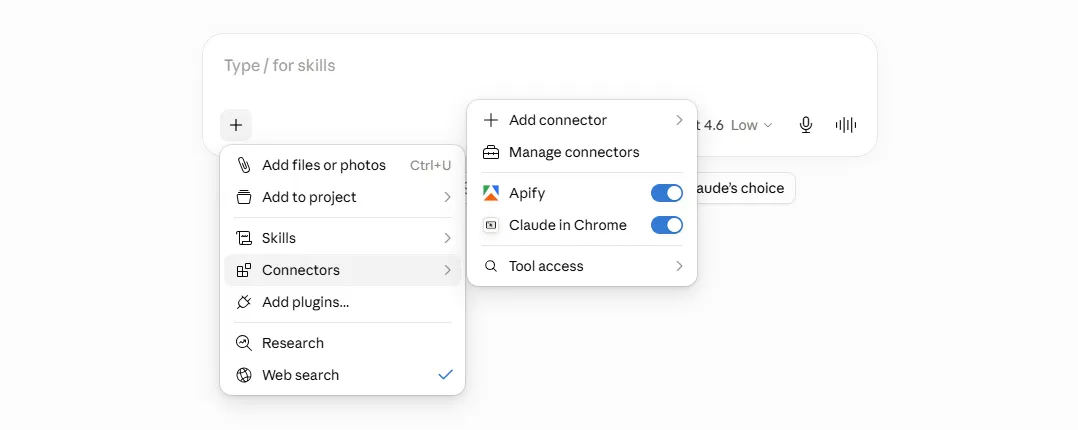
Once the connector is configured, open the Claude chat and verify that Apify appears as an available tool.

Now you can ask Claude in natural language to find the doctrine you need, without knowing the boolean operators or the internal subject-matter IDs. For example:
> **Use the legaltech/fiscalia actor and find Circulares on immigration**
> **Use the legaltech/fiscalia actor and give me the 2015 Instrucciones on minors, most recent first**
> **Use the legaltech/fiscalia actor and find Circular 5/2011**
> **Use the legaltech/fiscalia actor and search for Consultas on gender-based violence**
Claude will translate your request into the right filters (document type, subject matter, year, number, or search terms with AND/OR/NOT operators) and run the actor for you, returning the list of Circulares, Instrucciones, or Consultas that match your request.
### **Step 5: Extract the Full Text and Analyse It from the Chat**
Once you have the list, you can ask Claude to dig deeper into one or more specific documents. Claude will re-run the actor with the references of those documents (the `documentIds` field) to download their full text, the validity comment, the associated subject matters, and the earlier legal references they cite.
For example, you can continue the conversation with:
- *Download the full text of Circular 5/2011 and summarise it in ten lines.*
- *Is this Circular still in force, or has it been amended by a later one?*
- *Compare the criterion of these two Consultas on the same matter.*
- *Generate a table with the reference, type, year, and a sentence on the main criterion of each document.*
- *What rules does this Instrucción cite as reference?*
The analysis is a conversation: you refine your questions and Claude responds drawing on the doctrine it retrieved directly from the BOE.es search engine, saving you the form navigation and the initial reading of each document.
Published on Wed Jul 01 2026 00:00:00 GMT+0000 (Coordinated Universal Time) by Miguel Gonzalez Herrera
Searching Circulares, Instrucciones and Consultas from the Spanish State Prosecutor Office (Fiscalía General del Estado) in the BOE.es doctrine search engine means dealing with unintuitive filters and forms that only accept one value per field. In this guide you will learn how to connect the Apify MCP to Claude so that the assistant itself searches and analyses this doctrine for you, all from a simple conversation.
⚖️ What Does the legaltech/fiscalia Actor Cover?
The legaltech/fiscalia actor automates the search for doctrine from the Spanish State Prosecutor Office published in the BOE.es search engine:
Circulares — mandatory guidelines that all members of the Public Prosecutor’s Office must follow.
Instrucciones — internal organisation guidelines or guidance on specific matters.
Consultas — responses from the State Prosecutor Office to interpretive questions raised by prosecutors.
It lets you filter by document type, title, full text, year, number and legal subject matter (25 areas, from Immigration or Gender-Based Violence to Cybercrime), and in a second run it can download the full text of the chosen documents together with their validity comment and the legal references they cite.
🤖 Tutorial: Connect Apify to Claude and Start Querying
Thanks to the Model Context Protocol (MCP), Claude can connect to external tools such as Apify. This means that, instead of filling in the BOE.es form by hand, you can ask Claude in natural language to retrieve the doctrine you need and work with it.
Step 1: Create an Apify Account and Get Your Token
The first thing you need is an Apify account. The free plan provides enough monthly usage credits to run the actor.
Once inside, go to Settings → API & Integrations, click Create new token, and copy it.
Step 2: Download Claude Desktop
Download and install the Claude Desktop app from claude.com/download. This desktop version is the one that allows you to add external MCP connectors.
Step 3: Install the Apify Connector and Paste Your Token
Open Claude Desktop, go to the connector settings, and select Add custom connector. Enter the Apify MCP URL and paste the token you copied in the previous step.
With this you now have access to all LegalTech actors from Claude: legaltech/fiscalia, legaltech/cendoj, legaltech/tribunal-constitucional, and many more.
📱 Bonus: Once the connector is set up in your account, you can also use it from the Claude mobile app. The connector is linked to your account, so you can query Fiscalía doctrine from any device without any additional configuration.
Step 4: Query State Prosecutor Doctrine from the Chat
Once the connector is configured, open the Claude chat and verify that Apify appears as an available tool.
Now you can ask Claude in natural language to find the doctrine you need, without knowing the boolean operators or the internal subject-matter IDs. For example:
Use the legaltech/fiscalia actor and find Circulares on immigration
Use the legaltech/fiscalia actor and give me the 2015 Instrucciones on minors, most recent first
Use the legaltech/fiscalia actor and find Circular 5/2011
Use the legaltech/fiscalia actor and search for Consultas on gender-based violence
Claude will translate your request into the right filters (document type, subject matter, year, number, or search terms with AND/OR/NOT operators) and run the actor for you, returning the list of Circulares, Instrucciones, or Consultas that match your request.
Step 5: Extract the Full Text and Analyse It from the Chat
Once you have the list, you can ask Claude to dig deeper into one or more specific documents. Claude will re-run the actor with the references of those documents (the documentIds field) to download their full text, the validity comment, the associated subject matters, and the earlier legal references they cite.
For example, you can continue the conversation with:
Download the full text of Circular 5/2011 and summarise it in ten lines.
Is this Circular still in force, or has it been amended by a later one?
Compare the criterion of these two Consultas on the same matter.
Generate a table with the reference, type, year, and a sentence on the main criterion of each document.
What rules does this Instrucción cite as reference?
The analysis is a conversation: you refine your questions and Claude responds drawing on the doctrine it retrieved directly from the BOE.es search engine, saving you the form navigation and the initial reading of each document.
How to Use the Apify MCP with a Local Model (Ollama) to Search CENDOJ Rulings
Learn how to search Spanish CENDOJ rulings in natural language with a language model that runs on your own computer: Ollama, AnythingLLM and the Apify MCP, without sending your conversations or documents to Claude or ChatGPT.
How to Use the Apify MCP in Claude to Find Which Cadastral Parcel You Are In and Look Up Its Data
Learn how to connect the Apify MCP to Claude and use the legaltech/catastro actor to get a parcel's cadastral reference from your coordinates or an address, and look up its official data without going through the Spanish Cadastre website.
How to Use the Apify MCP in Claude to Cross-Reference Spanish Mortgage and Foreclosure Data from the INE
Learn how to connect the Apify MCP to Claude and use the legaltech/ine actor to cross-reference Spain’s Mortgage Statistics and Mortgage Foreclosure Statistics from the INE, and reach the provincial figure no article publishes.
How to Use the Apify MCP in ChatGPT to Access LegalTech Legal Connectors
Learn how to use LegalTech legal connectors from a free ChatGPT account: enable Developer Mode, add the Apify MCP (@Apify), and query Fiscalía, CENDOJ, Hacienda, Property Registry, and more directly from the chat.
How to Use the Apify MCP in Claude to Query Doctrine from the Spanish State Prosecutor Office
Learn how to connect the Apify MCP to Claude and use the legaltech/fiscalia actor to search Circulares, Instrucciones and Consultas from the Spanish State Prosecutor Office directly from the chat, simply by asking in natural language.
How to Use the Apify MCP in Claude to Query Spanish Tax Authority Administrative Doctrine
Learn how to connect the Apify MCP to Claude and use the legaltech/hacienda actor to query TEAC tax administrative doctrine, DGT binding rulings, and historical resolutions directly from the chat.
We use Google Analytics cookies to analyze traffic and improve your experience. You can accept them, reject them, or read our Privacy & Cookies policy. Privacy & Cookies.