← Back to blog # Automate BOE Alerts for Intellectual Property Website Blocking Orders
Learn how to build a monitoring system to watch the BOE and receive alerts about Intellectual Property resolutions that order the blocking of websites.
The Second Section of Spain's Intellectual Property Commission (Comisión de Propiedad Intelectual) has the authority to order the blocking and de-indexing of websites that infringe copyright. If you manage a website, represent rights holders, or simply want to stay informed, knowing when these resolutions are issued is crucial. A notice in Spain's Official State Gazette (BOE) may be the only warning before a site becomes inaccessible in Spain.
Manually checking the BOE is an impossible task. That is why, in this guide, we will show you how to create an automated alert system so you never miss a resolution.
## ️🛡️ Automate Intellectual Property Monitoring in the BOE
With this tutorial, you will be able to set up a system that checks the BOE daily for Intellectual Property resolutions. You can monitor specific web domains, case numbers, or applicant names (such as AGEDI). If a relevant announcement is published, you will receive an email alert instantly.
## What can you monitor with this automation?
Intellectual Property Commission resolutions contain key information you can use to configure your alerts. The goal is to receive a notification whenever something containing your terms of interest is published.
Here are some practical examples of what you can monitor:
* **Specific web domains**: If you want to know when a particular site is ordered to be blocked (e.g. `infringing-site.com`), add that domain to your watchlist.
* **Rights holders or associations**: If you represent an entity or want to track proceedings initiated by associations like `AGEDI`, `AIE`, or `PROMUSICAE`, use their names as search terms.
* **Case numbers**: To follow a specific case, add its case number (e.g. `1150-2864191`) to your spreadsheet.
When the system finds a match in the BOE, it will send you an email with a direct link to the announcement, letting you instantly know the measures ordered — from de-indexing instructions to access blocking by internet operators.
## How to Set Up Your Automated Alert System
### **Step 1: Prerequisites**
You will need an account on **Make.com** and **Apify**. Both offer free plans sufficient for this automation.
1. **Apify account**: Sign up to get free credits.
<br>
<a href="https://console.apify.com/sign-up?fpr=legaltech" target="_blank" rel="noopener noreferrer" style="display: inline-block; padding: 10px 20px; font-size: 16px; font-weight: bold; text-align: center; text-decoration: none; color: #ffffff; background-color: #6B46C1; border-radius: 8px;">
Create a free Apify account
</a>
<br>
2. **Make.com account**: Sign up to get 1,000 free operations per month.
<br>
<a href="https://www.make.com/en/register?pc=legaltech" target="_blank" rel="noopener noreferrer" style="display: inline-block; padding: 10px 20px; font-size: 16px; font-weight: bold; text-align: center; text-decoration: none; color: #ffffff; background-color: #6B46C1; border-radius: 8px;">
Create a free Make.com account
</a>
<br>
### **Step 2: Set Up the Scenario in Make.com**
To get started, clone our pre-configured scenario. The setup is almost identical to the **traffic notifications** tutorial, so you can follow those same steps.
<a href="https://eu1.make.com/public/shared-scenario/sxH5O1GsQmg/propiedad-intelectual-notificaciones" target="_blank" rel="noopener noreferrer" style="display: inline-block; padding: 10px 20px; font-size: 16px; font-weight: bold; text-align: center; text-decoration: none; color: #ffffff; background-color: #6B46C1; border-radius: 8px;">
Clone Make.com Scenario
</a>
The workflow looks like this:
#### Module Configuration:
1. **Google Sheets**: Create a spreadsheet with a column where you will add the terms to monitor (web domains, case numbers, entity names, etc.). Connect your account in the Make module and select this sheet.
2. **Apify**: Connect your account. The cloned scenario already uses the correct actor.
3. **Gmail**: Connect your account and customise the alert email. The scenario already includes a template you can adapt to include the matched term and the link to the BOE PDF.
### **Step 3: How to Test the Workflow**
1. **Find a real notification published today**: Go to the latest BOE announcements about Intellectual Property.
<a href="https://www.boe.es/notificaciones/notificaciones.php?campo%5B0%5D=DOC&dato%5B0%5D=&operador%5B0%5D=and&campo%5B1%5D=DEM&dato%5B1%5D=&operador%5B1%5D=and&campo%5B2%5D=MATERIA&dato%5B2%5D=31&operador%5B2%5D=and&campo%5B3%5D=NBO&dato%5B3%5D=&operador%5B4%5D=and&campo%5B4%5D=FPU&dato%5B4%5D%5B0%5D=&dato%5B4%5D%5B1%5D=&page_hits=50&sort_field%5B0%5D=FPU&sort_order%5B0%5D=desc&sort_field%5B1%5D=id&sort_order%5B1%5D=asc&accion=Buscar" target="_blank" rel="noopener noreferrer" style="display: inline-block; padding: 10px 20px; font-size: 16px; font-weight: bold; text-align: center; text-decoration: none; color: #ffffff; background-color: #6B46C1; border-radius: 8px;">
Latest Intellectual Property notifications in BOE
</a>
2. **Copy a search term**: Copy a domain, case number, or entity name from a recent notification.
3. **Add it to your Google Spreadsheet**.
4. **Run the workflow**: In Make.com, click "Run once". You should receive an email if everything is configured correctly.
### **Step 4: Schedule the Workflow**
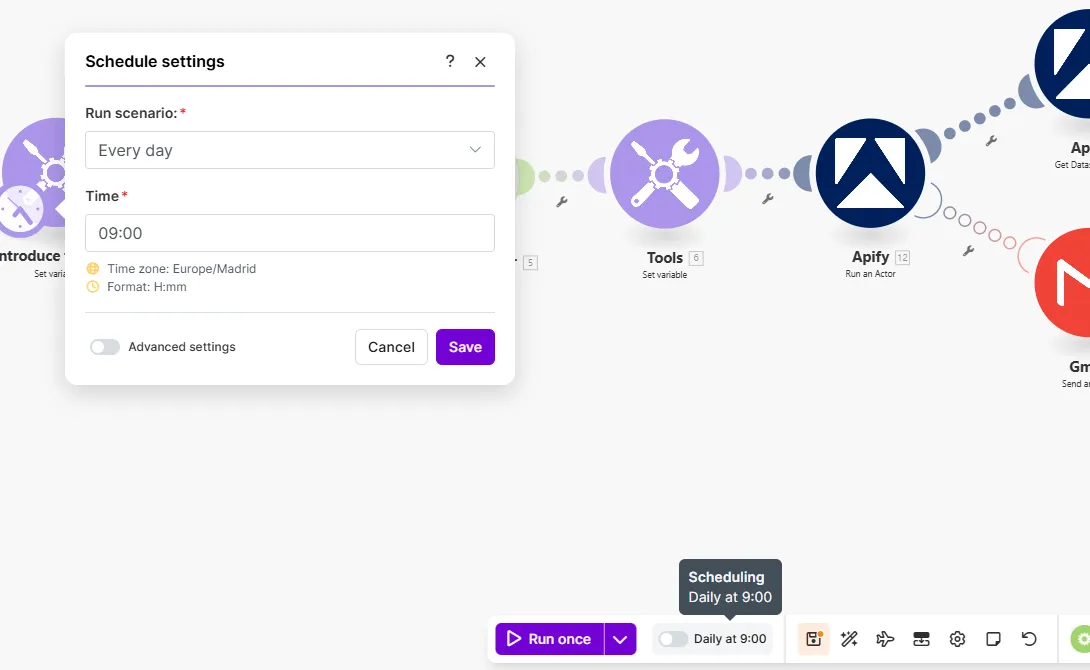
Finally, activate the scenario and configure it to run daily. Make.com will become your personal BOE watchdog for the intellectual property proceedings that matter to you.

That is it! You now have a proactive system to protect your rights or those of your clients.
Published on Fri Jan 23 2026 00:00:00 GMT+0000 (Coordinated Universal Time) by Miguel Gonzalez Herrera
The Second Section of Spain’s Intellectual Property Commission (Comisión de Propiedad Intelectual) has the authority to order the blocking and de-indexing of websites that infringe copyright. If you manage a website, represent rights holders, or simply want to stay informed, knowing when these resolutions are issued is crucial. A notice in Spain’s Official State Gazette (BOE) may be the only warning before a site becomes inaccessible in Spain.
Manually checking the BOE is an impossible task. That is why, in this guide, we will show you how to create an automated alert system so you never miss a resolution.
️🛡️ Automate Intellectual Property Monitoring in the BOE
With this tutorial, you will be able to set up a system that checks the BOE daily for Intellectual Property resolutions. You can monitor specific web domains, case numbers, or applicant names (such as AGEDI). If a relevant announcement is published, you will receive an email alert instantly.
What can you monitor with this automation?
Intellectual Property Commission resolutions contain key information you can use to configure your alerts. The goal is to receive a notification whenever something containing your terms of interest is published.
Here are some practical examples of what you can monitor:
Specific web domains: If you want to know when a particular site is ordered to be blocked (e.g. infringing-site.com), add that domain to your watchlist.
Rights holders or associations: If you represent an entity or want to track proceedings initiated by associations like AGEDI, AIE, or PROMUSICAE, use their names as search terms.
Case numbers: To follow a specific case, add its case number (e.g. 1150-2864191) to your spreadsheet.
When the system finds a match in the BOE, it will send you an email with a direct link to the announcement, letting you instantly know the measures ordered — from de-indexing instructions to access blocking by internet operators.
How to Set Up Your Automated Alert System
Step 1: Prerequisites
You will need an account on Make.com and Apify. Both offer free plans sufficient for this automation.
To get started, clone our pre-configured scenario. The setup is almost identical to the traffic notifications tutorial, so you can follow those same steps.
Google Sheets: Create a spreadsheet with a column where you will add the terms to monitor (web domains, case numbers, entity names, etc.). Connect your account in the Make module and select this sheet.
Apify: Connect your account. The cloned scenario already uses the correct actor.
Gmail: Connect your account and customise the alert email. The scenario already includes a template you can adapt to include the matched term and the link to the BOE PDF.
Step 3: How to Test the Workflow
Find a real notification published today: Go to the latest BOE announcements about Intellectual Property.
Copy a search term: Copy a domain, case number, or entity name from a recent notification.
Add it to your Google Spreadsheet.
Run the workflow: In Make.com, click “Run once”. You should receive an email if everything is configured correctly.
Step 4: Schedule the Workflow
Finally, activate the scenario and configure it to run daily. Make.com will become your personal BOE watchdog for the intellectual property proceedings that matter to you.
That is it! You now have a proactive system to protect your rights or those of your clients.
How to Use the Apify MCP with a Local Model (Ollama) to Search CENDOJ Rulings
Learn how to search Spanish CENDOJ rulings in natural language with a language model that runs on your own computer: Ollama, AnythingLLM and the Apify MCP, without sending your conversations or documents to Claude or ChatGPT.
How to Use the Apify MCP in Claude to Find Which Cadastral Parcel You Are In and Look Up Its Data
Learn how to connect the Apify MCP to Claude and use the legaltech/catastro actor to get a parcel's cadastral reference from your coordinates or an address, and look up its official data without going through the Spanish Cadastre website.
How to Use the Apify MCP in Claude to Cross-Reference Spanish Mortgage and Foreclosure Data from the INE
Learn how to connect the Apify MCP to Claude and use the legaltech/ine actor to cross-reference Spain’s Mortgage Statistics and Mortgage Foreclosure Statistics from the INE, and reach the provincial figure no article publishes.
How to Use the Apify MCP in ChatGPT to Access LegalTech Legal Connectors
Learn how to use LegalTech legal connectors from a free ChatGPT account: enable Developer Mode, add the Apify MCP (@Apify), and query Fiscalía, CENDOJ, Hacienda, Property Registry, and more directly from the chat.
How to Use the Apify MCP in Claude to Query Doctrine from the Spanish State Prosecutor Office
Learn how to connect the Apify MCP to Claude and use the legaltech/fiscalia actor to search Circulares, Instrucciones and Consultas from the Spanish State Prosecutor Office directly from the chat, simply by asking in natural language.
How to Use the Apify MCP in Claude to Query Spanish Tax Authority Administrative Doctrine
Learn how to connect the Apify MCP to Claude and use the legaltech/hacienda actor to query TEAC tax administrative doctrine, DGT binding rulings, and historical resolutions directly from the chat.
We use Google Analytics cookies to analyze traffic and improve your experience. You can accept them, reject them, or read our Privacy & Cookies policy. Privacy & Cookies.