← Back to blog # Automate Traffic Fine Searches in the BOE with Apify and n8n
Learn how to build an automated workflow that checks the Official Notice Board (TEU) daily for traffic notifications using Apify and n8n.
## 🤖 Tutorial: Automate Traffic Fine Searches in the BOE with Apify and n8n
In this guide, you will learn how to build an automated workflow that checks Spain's Official Notice Board (Tablón Edictal Único, TEU) daily for traffic notifications (fines, penalties, etc.) linked to your ID numbers, licence plates, or names.
We will use two powerful tools:
* **Apify**: To run an actor that extracts data from the BOE.
* **n8n**: To orchestrate the workflow and send notifications.
By the end, you will have a system that automatically notifies you if a relevant announcement is published.
### **Step 1: Prerequisites**
Before starting, make sure you have:
1. **An Apify account**: If you do not have one yet, sign up using the button below. The free plan is sufficient, as it provides monthly usage credits to run the actor.
<br>
<a href="https://console.apify.com/sign-up?fpr=legaltech" target="_blank" rel="noopener noreferrer" style="display: inline-block; padding: 10px 20px; font-size: 16px; font-weight: bold; text-align: center; text-decoration: none; color: #ffffff; background-color: #6B46C1; border-radius: 8px;">
Create a free Apify account
</a>
<br>
2. **An n8n instance**: You can use n8n Cloud or have your own self-hosted instance.
### **Step 2: Configure the Actor in Apify**
First, let us prepare the actor in Apify so it knows what to look for.
1. **Find the Actor**: Go to the Apify Store and search for the **`teu-trafico`** actor.
2. **Test it manually**: Click **Try for free**. In the `Input` tab, enter the search terms you want to look up. This will help you get familiar with how it works.
**Example `Input`:**
```json
{
  "searchTerms": [
    "1461DNB",
    "1234ABC",
  ]
}
```
3. **Get the Actor ID**: Once on the actor page, go to the **API** tab. You will see a unique identifier for the actor (for example, `legaltech/teu-trafico`). Copy it — you will need it in n8n.
### **Step 3: Build the Workflow in n8n**
Now it is time to create the automation in n8n. The workflow will be:
`Trigger (Every day)` → `Run Actor in Apify` → `Check if there are results` → `Send Notification`
#### 1. Start Node (Trigger)
Create a new workflow in n8n and add a **Cron** node. This node will act as the trigger. Configure it to run once a day at a convenient time (for example, at 10:00 AM).
* **Mode**: `Every Day`
* **Hour**: `10`
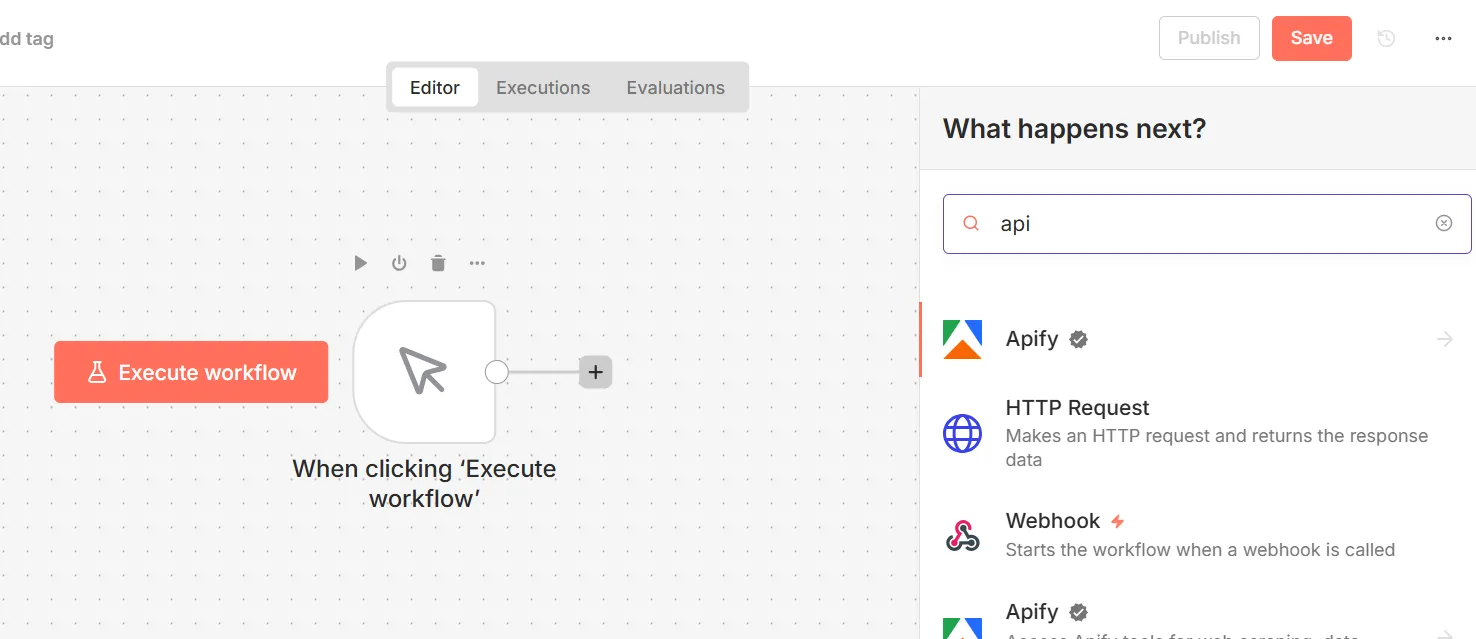
#### 2. Apify Node
Add an **Apify** node and connect it after the Cron node.

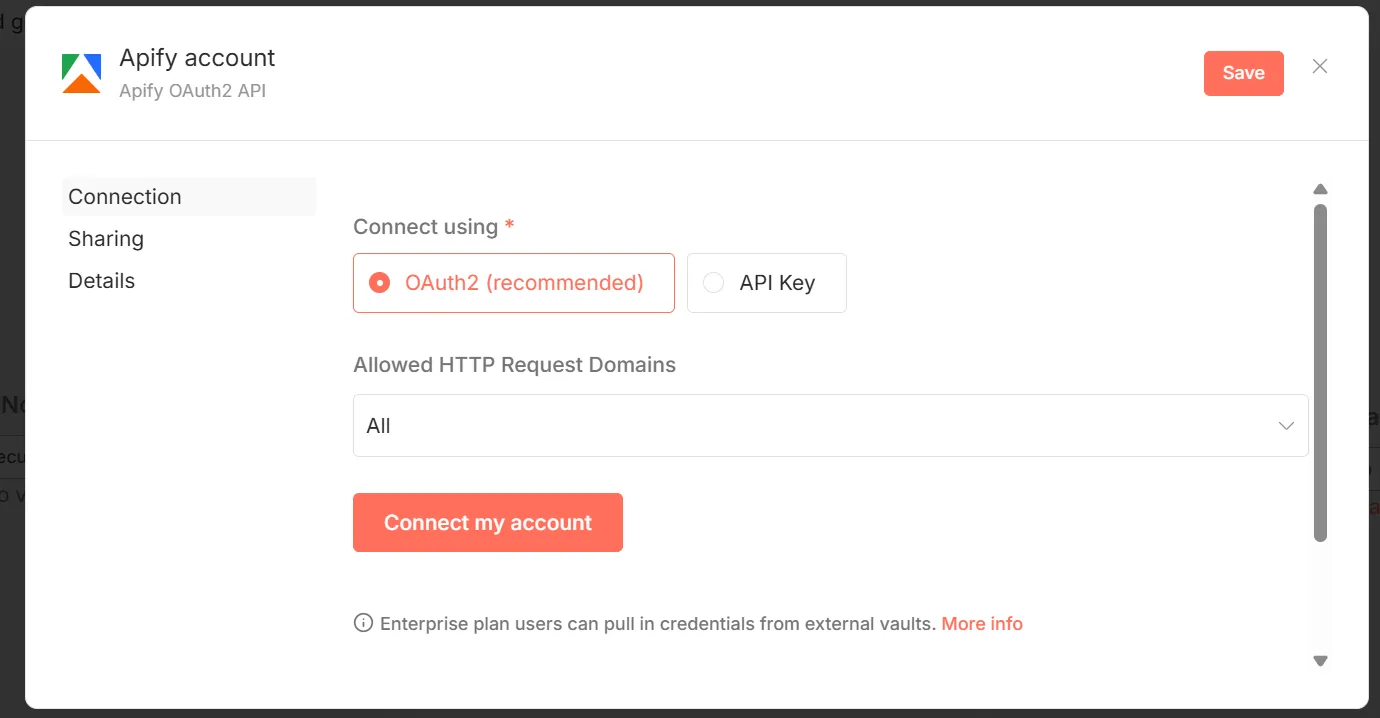
1. **Authentication**:
* Click `Credential for Apify API`.
* Select `Create New`.
* In the dialog that appears, you will see the option to authenticate using `OAuth2`. n8n will guide you through the process of connecting your Apify account securely without needing to copy and paste any API key.

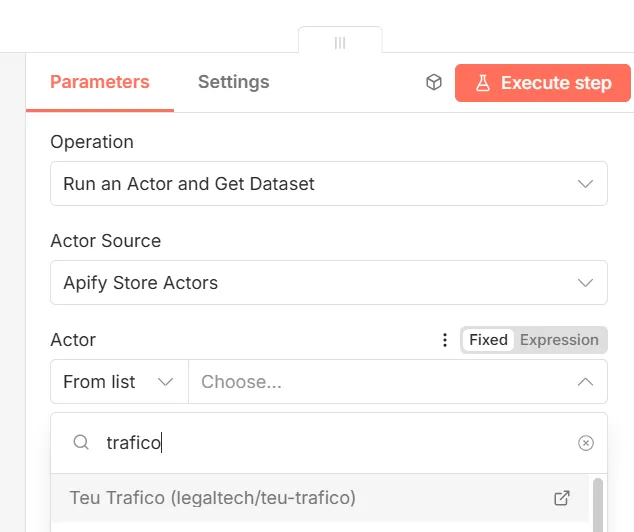
2. **Node Configuration**:
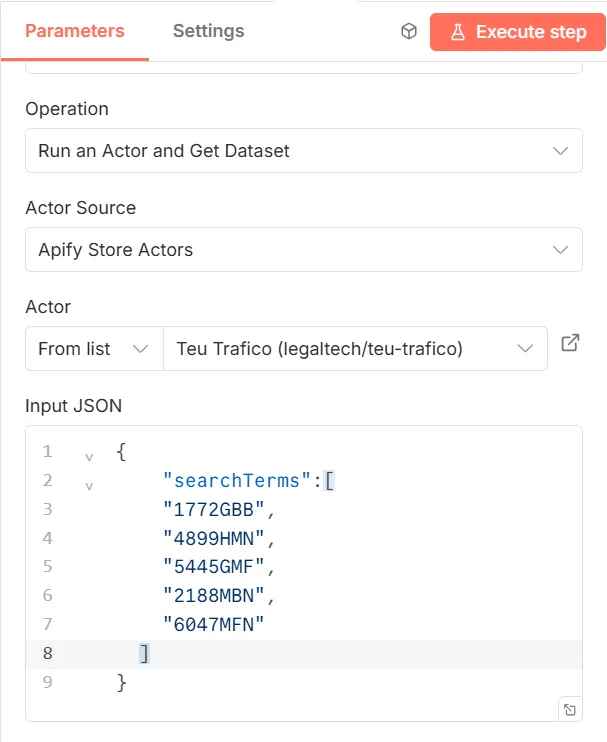
* **Operation**: Select `Run an Actor and Get Dataset`.
* **Actor Source**: Choose `Apify Store Actors`.
* **Actor**: Search for and select `Teu Trafico (legaltech/teu-trafico)`.

* **Input JSON**: Paste your search terms here in JSON format.

#### 3. IF Node (Conditional)
This node will decide whether a notification should be sent. We only want an alert if the actor has found results.
1. Add an **IF** node after the Apify node.
2. **Configure the condition**:
* In the first `Value 1` field, click the gear icon and select `Add Expression`.
* Use the variable selector to point to the result of the Apify node. The expression should be something like: `{{ $json.length }}`. This counts how many results were found.
* **Operation**: `Is Larger Than`
* **Value 2**: `0`
This configuration means: "If the number of results is greater than zero, continue through the `true` output."
#### 4. Notification Node (e.g. Email)
Connect a notification node to the `true` output of the IF node. You can use **Email**, **Slack**, **Telegram**, or any other service you prefer. Here we will use the **Send Email** node as an example.
1. **Authentication**: Configure your SMTP credentials to be able to send emails.
2. **Email Configuration**:
* **To**: `your-email@domain.com`
* **Subject**: `New traffic notifications found!`
* **HTML**: Enable this option to format the email body.
To create a dynamic message listing the results, use expressions to insert data from the Apify node.
**Example for the `HTML` field:**
```html
<h3>Traffic notifications have been found in the BOE:</h3>
<br>
<ul>
{{
  // Iterate over each result found by Apify
  $json.map(item => `
    <li>
      <strong>Search Term:</strong> ${item.json.terminoBuscado}<br>
      <strong>Publisher:</strong> ${item.json.publicador}<br>
      <strong>Description:</strong> ${item.json.descripcion}<br>
      <strong>PDF:</strong> <a href="${item.json.pdfUrl}">View PDF (${item.json.pdfReferencia})</a>
    </li>
    <br>
  `).join('')
}}
</ul>
```
### **Step 4: Activate and Test!**
That is it! Your workflow is ready.
1. **Save** the workflow.
2. **Activate** it using the toggle in the top-right corner.
3. For an initial test, click `Execute Workflow` manually. If you have configured a search term that has results today, you will receive an email within a few minutes.
From now on, n8n will carry out this task for you every day, and will only bother you if it finds something relevant.
Published on Thu Jan 08 2026 00:00:00 GMT+0000 (Coordinated Universal Time) by Miguel Gonzalez Herrera
🤖 Tutorial: Automate Traffic Fine Searches in the BOE with Apify and n8n
In this guide, you will learn how to build an automated workflow that checks Spain’s Official Notice Board (Tablón Edictal Único, TEU) daily for traffic notifications (fines, penalties, etc.) linked to your ID numbers, licence plates, or names.
We will use two powerful tools:
Apify: To run an actor that extracts data from the BOE.
n8n: To orchestrate the workflow and send notifications.
By the end, you will have a system that automatically notifies you if a relevant announcement is published.
Step 1: Prerequisites
Before starting, make sure you have:
An Apify account: If you do not have one yet, sign up using the button below. The free plan is sufficient, as it provides monthly usage credits to run the actor.
An n8n instance: You can use n8n Cloud or have your own self-hosted instance.
Step 2: Configure the Actor in Apify
First, let us prepare the actor in Apify so it knows what to look for.
Find the Actor: Go to the Apify Store and search for the teu-trafico actor.
Test it manually: Click Try for free. In the Input tab, enter the search terms you want to look up. This will help you get familiar with how it works.
Example Input:
{ "searchTerms": [ "1461DNB", "1234ABC", ]}
Get the Actor ID: Once on the actor page, go to the API tab. You will see a unique identifier for the actor (for example, legaltech/teu-trafico). Copy it — you will need it in n8n.
Step 3: Build the Workflow in n8n
Now it is time to create the automation in n8n. The workflow will be:
Trigger (Every day) → Run Actor in Apify → Check if there are results → Send Notification
1. Start Node (Trigger)
Create a new workflow in n8n and add a Cron node. This node will act as the trigger. Configure it to run once a day at a convenient time (for example, at 10:00 AM).
Mode: Every Day
Hour: 10
2. Apify Node
Add an Apify node and connect it after the Cron node.
Authentication:
Click Credential for Apify API.
Select Create New.
In the dialog that appears, you will see the option to authenticate using OAuth2. n8n will guide you through the process of connecting your Apify account securely without needing to copy and paste any API key.
Node Configuration:
Operation: Select Run an Actor and Get Dataset.
Actor Source: Choose Apify Store Actors.
Actor: Search for and select Teu Trafico (legaltech/teu-trafico).
Input JSON: Paste your search terms here in JSON format.
3. IF Node (Conditional)
This node will decide whether a notification should be sent. We only want an alert if the actor has found results.
Add an IF node after the Apify node.
Configure the condition:
In the first Value 1 field, click the gear icon and select Add Expression.
Use the variable selector to point to the result of the Apify node. The expression should be something like: {{ $json.length }}. This counts how many results were found.
Operation: Is Larger Than
Value 2: 0
This configuration means: “If the number of results is greater than zero, continue through the true output.”
4. Notification Node (e.g. Email)
Connect a notification node to the true output of the IF node. You can use Email, Slack, Telegram, or any other service you prefer. Here we will use the Send Email node as an example.
Authentication: Configure your SMTP credentials to be able to send emails.
Email Configuration:
To: your-email@domain.com
Subject: New traffic notifications found!
HTML: Enable this option to format the email body.
To create a dynamic message listing the results, use expressions to insert data from the Apify node.
Example for the HTML field:
<h3>Traffic notifications have been found in the BOE:</h3><br><ul>{{ // Iterate over each result found by Apify $json.map(item => ` <li> <strong>Search Term:</strong> ${item.json.terminoBuscado}<br> <strong>Publisher:</strong> ${item.json.publicador}<br> <strong>Description:</strong> ${item.json.descripcion}<br> <strong>PDF:</strong> <a href="${item.json.pdfUrl}">View PDF (${item.json.pdfReferencia})</a> </li> <br> `).join('')}}</ul>
Step 4: Activate and Test!
That is it! Your workflow is ready.
Save the workflow.
Activate it using the toggle in the top-right corner.
For an initial test, click Execute Workflow manually. If you have configured a search term that has results today, you will receive an email within a few minutes.
From now on, n8n will carry out this task for you every day, and will only bother you if it finds something relevant.
How to Use the Apify MCP with a Local Model (Ollama) to Search CENDOJ Rulings
Learn how to search Spanish CENDOJ rulings in natural language with a language model that runs on your own computer: Ollama, AnythingLLM and the Apify MCP, without sending your conversations or documents to Claude or ChatGPT.
How to Use the Apify MCP in Claude to Find Which Cadastral Parcel You Are In and Look Up Its Data
Learn how to connect the Apify MCP to Claude and use the legaltech/catastro actor to get a parcel's cadastral reference from your coordinates or an address, and look up its official data without going through the Spanish Cadastre website.
How to Use the Apify MCP in Claude to Cross-Reference Spanish Mortgage and Foreclosure Data from the INE
Learn how to connect the Apify MCP to Claude and use the legaltech/ine actor to cross-reference Spain’s Mortgage Statistics and Mortgage Foreclosure Statistics from the INE, and reach the provincial figure no article publishes.
How to Use the Apify MCP in ChatGPT to Access LegalTech Legal Connectors
Learn how to use LegalTech legal connectors from a free ChatGPT account: enable Developer Mode, add the Apify MCP (@Apify), and query Fiscalía, CENDOJ, Hacienda, Property Registry, and more directly from the chat.
How to Use the Apify MCP in Claude to Query Doctrine from the Spanish State Prosecutor Office
Learn how to connect the Apify MCP to Claude and use the legaltech/fiscalia actor to search Circulares, Instrucciones and Consultas from the Spanish State Prosecutor Office directly from the chat, simply by asking in natural language.
How to Use the Apify MCP in Claude to Query Spanish Tax Authority Administrative Doctrine
Learn how to connect the Apify MCP to Claude and use the legaltech/hacienda actor to query TEAC tax administrative doctrine, DGT binding rulings, and historical resolutions directly from the chat.
We use Google Analytics cookies to analyze traffic and improve your experience. You can accept them, reject them, or read our Privacy & Cookies policy. Privacy & Cookies.