← Back to blog # How to Build a BOE Monitoring System for Property Registration Notifications
Learn how to build an automatic monitoring system to watch the BOE and receive alerts about property regularisation proceedings (Notarial Acts of Notoriety) linked to your cadastral references.
Regularising a property is a key step in ensuring legal security, but the process can be complicated. One of the most critical moments occurs when notification to an adjacent owner fails and, by law, the proceeding must be published in Spain's Official State Gazette (BOE). If you miss this publication, you may lose the opportunity to oppose a surface area amendment that affects you.
Manually checking the BOE every day is not feasible. That is why, in this guide, we explain the legal context of these proceedings and offer you an automated solution so nothing slips through the cracks.
## 🚜 Automate Property Monitoring in the BOE with Make.com and Apify
## Legal Context: Why Does This Monitoring Matter?
To understand the value of this automation, it is essential to know the legal procedure behind it.
### **The Notification Flow: From Certified Letter to the BOE**
The law establishes a notification flow to ensure that all interested parties have the opportunity to participate in the regularisation process. This flow follows these steps:
1. **Identification:** The Notary identifies adjacent owners based on the Graphic and Descriptive Cadastral Certificate.
2. **Personal Attempt:** A certified letter with acknowledgement of receipt is sent to each identified adjacent owner.
3. **Failure:** If a recipient does not collect the letter from the post office within the deadline, the notification is considered failed.
4. **Public Notice:** When personal notification fails, the law requires publishing a notice in the BOE (specifically in the Notifications Supplement) informing parties of the proceeding.
5. **Legal Fiction:** After publication in the BOE, the adjacent owner is legally deemed to have been notified for all purposes.
This last point is fundamental: publication in the BOE substitutes failed personal notification, allowing the process to continue. And this is precisely where our automation becomes indispensable.
## How to Set Up Your Automated Alert System
### **Step 1: Prerequisites**
Before starting, make sure you have:
1. **An Apify account**: If you do not have one yet, sign up using the button below. The free plan is sufficient, as it provides monthly usage credits to run the actor.
<br>
<a href="https://console.apify.com/sign-up?fpr=legaltech" target="_blank" rel="noopener noreferrer" style="display: inline-block; padding: 10px 20px; font-size: 16px; font-weight: bold; text-align: center; text-decoration: none; color: #ffffff; background-color: #6B46C1; border-radius: 8px;">
Create a free Apify account
</a>
<br>
2. **A Make.com account**: If you do not have one yet, sign up using the button below. The free plan gives you 1,000 operations per month, more than enough for this automation.
<br>
<a href="https://www.make.com/en/register?pc=legaltech" target="_blank" rel="noopener noreferrer" style="display: inline-block; padding: 10px 20px; font-size: 16px; font-weight: bold; text-align: center; text-decoration: none; color: #ffffff; background-color: #6B46C1; border-radius: 8px;">
Create a free Make.com account
</a>
<br>
### **Step 2: Set Up the Scenario in Make.com**
To make things easier, you can clone our pre-configured scenario directly into your Make.com account:
<a href="https://eu1.make.com/public/shared-scenario/b8LfYovncRk/registro-de-la-propiedad-notificacione?fpr=legaltech" target="_blank" rel="noopener noreferrer" style="display: inline-block; padding: 10px 20px; font-size: 16px; font-weight: bold; text-align: center; text-decoration: none; color: #ffffff; background-color: #6B46C1; border-radius: 8px;">
Clone Make.com Scenario
</a>
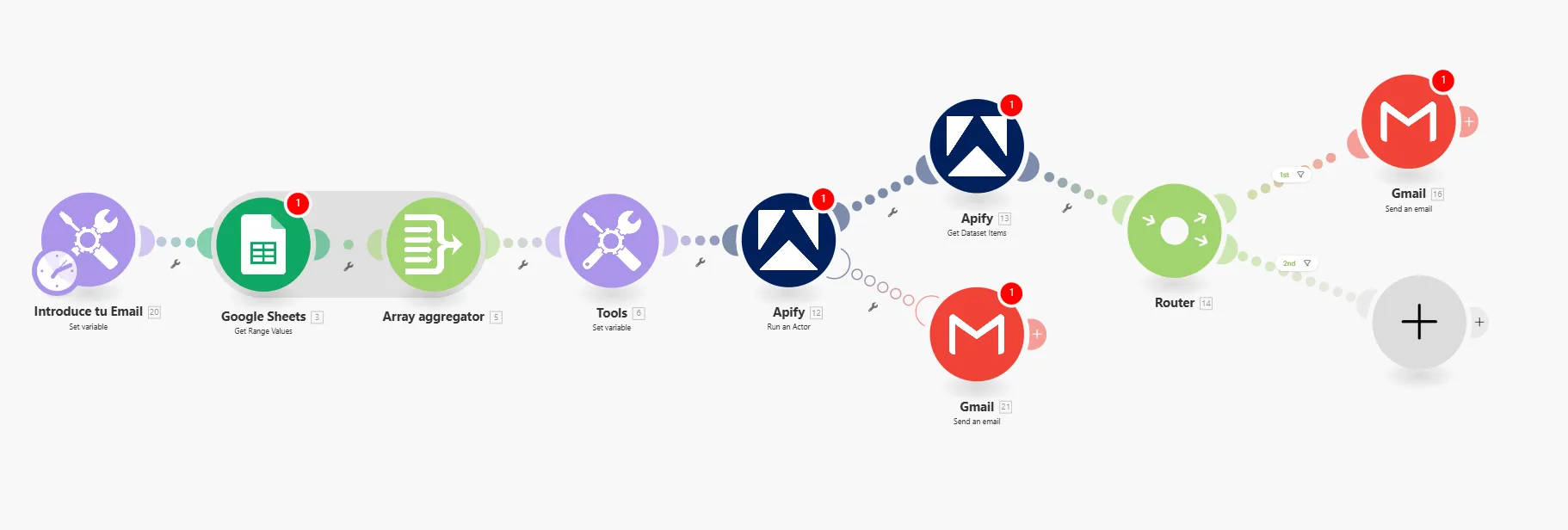
The complete workflow looks like this:

Below is the configuration for each module.
#### 1. Connect Google Sheets
The first step is to connect your Google account to read the cadastral references from a spreadsheet.
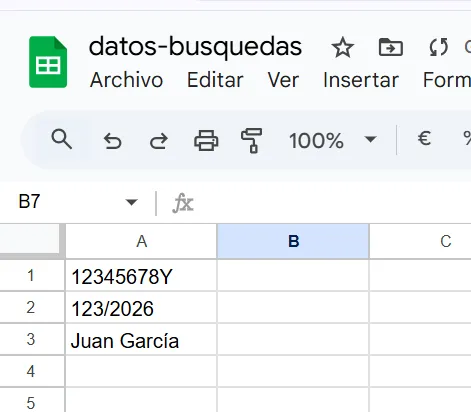
1. **Create a Google Spreadsheet in your Drive.**
Add the cadastral references you want to monitor in a column.

*Note: You can also add other data types to filter within the notice.*
2. In the Make scenario, click the **Google Sheets module** and connect your account. Select the file and sheet you just created. Make sure the cell range covers all the references you plan to add.
#### 2. Connect Apify
Now we will connect Apify to handle the BOE search.
1. **Connect Apify**: Select the Apify module (`Run an Actor`) and connect your account. Make.com will guide you through the authentication process.
2. **Configure the Actor**: The cloned scenario already has the correct actor pre-loaded.
#### 3. Connect Gmail
Finally, if results are found, we will send an email.
1. Select the **Gmail module** and connect your account.
2. Configure the recipient (your email address), subject, and message body. The cloned scenario already includes a template you can customise to include the search term (the cadastral reference) and the link to the BOE announcement PDF.
### **Step 3: How to Test the Workflow**
1. **Find a real notification from today**: Go to the latest BOE announcements and look for a recent notification containing a cadastral reference.
<a href="https://www.boe.es/notificaciones/notificaciones.php?campo%5B0%5D=DOC&dato%5B0%5D=&operador%5B0%5D=and&campo%5B1%5D=DEM&dato%5B1%5D=&operador%5B1%5D=and&campo%5B2%5D=MATERIA&dato%5B2%5D=34&operador%5B2%5D=and&campo%5B3%5D=NBO&dato%5B3%5D=&operador%5B4%5D=and&campo%5B4%5D=FPU&dato%5B4%5D%5B0%5D=&dato%5B4%5D%5B1%5D=&page_hits=50&sort_field%5B0%5D=FPU&sort_order%5B0%5D=desc&sort_field%5B1%5D=id&sort_order%5B1%5D=asc&accion=Buscar" target="_blank" rel="noopener noreferrer" style="display: inline-block; padding: 10px 20px; font-size: 16px; font-weight: bold; text-align: center; text-decoration: none; color: #ffffff; background-color: #6B46C1; border-radius: 8px;">
Latest Property notifications in BOE
</a>
2. **Copy the cadastral reference**: Copy it from the BOE announcement.
3. **Add it to your Google Spreadsheet**: Paste the reference into the column you created.
4. **Run the workflow**: In Make.com, click "Run once".
If everything is configured correctly, you will receive an email alert within a few minutes.
### **Step 4: Schedule the Workflow**
The last step is to let the automation run on its own.
1. In Make.com, activate the scenario using the main toggle.
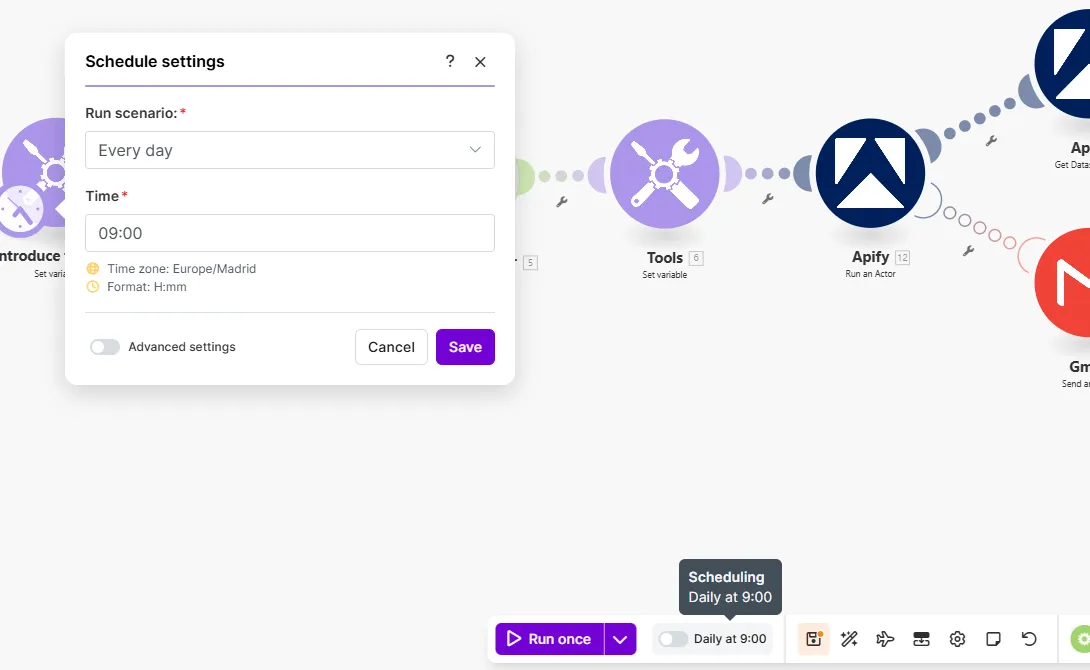
2. Set up the schedule (`Schedule`) to run every day at a specific time (for example, at 9:00 AM).

That is it! From now on, Make.com will become your personal BOE watchdog for the proceedings affecting the properties you are interested in.
Published on Thu Jan 22 2026 00:00:00 GMT+0000 (Coordinated Universal Time) by Miguel Gonzalez Herrera
Regularising a property is a key step in ensuring legal security, but the process can be complicated. One of the most critical moments occurs when notification to an adjacent owner fails and, by law, the proceeding must be published in Spain’s Official State Gazette (BOE). If you miss this publication, you may lose the opportunity to oppose a surface area amendment that affects you.
Manually checking the BOE every day is not feasible. That is why, in this guide, we explain the legal context of these proceedings and offer you an automated solution so nothing slips through the cracks.
🚜 Automate Property Monitoring in the BOE with Make.com and Apify
Legal Context: Why Does This Monitoring Matter?
To understand the value of this automation, it is essential to know the legal procedure behind it.
The Notification Flow: From Certified Letter to the BOE
The law establishes a notification flow to ensure that all interested parties have the opportunity to participate in the regularisation process. This flow follows these steps:
Identification: The Notary identifies adjacent owners based on the Graphic and Descriptive Cadastral Certificate.
Personal Attempt: A certified letter with acknowledgement of receipt is sent to each identified adjacent owner.
Failure: If a recipient does not collect the letter from the post office within the deadline, the notification is considered failed.
Public Notice: When personal notification fails, the law requires publishing a notice in the BOE (specifically in the Notifications Supplement) informing parties of the proceeding.
Legal Fiction: After publication in the BOE, the adjacent owner is legally deemed to have been notified for all purposes.
This last point is fundamental: publication in the BOE substitutes failed personal notification, allowing the process to continue. And this is precisely where our automation becomes indispensable.
How to Set Up Your Automated Alert System
Step 1: Prerequisites
Before starting, make sure you have:
An Apify account: If you do not have one yet, sign up using the button below. The free plan is sufficient, as it provides monthly usage credits to run the actor.
A Make.com account: If you do not have one yet, sign up using the button below. The free plan gives you 1,000 operations per month, more than enough for this automation.
The first step is to connect your Google account to read the cadastral references from a spreadsheet.
Create a Google Spreadsheet in your Drive.
Add the cadastral references you want to monitor in a column.
Note: You can also add other data types to filter within the notice.
In the Make scenario, click the Google Sheets module and connect your account. Select the file and sheet you just created. Make sure the cell range covers all the references you plan to add.
2. Connect Apify
Now we will connect Apify to handle the BOE search.
Connect Apify: Select the Apify module (Run an Actor) and connect your account. Make.com will guide you through the authentication process.
Configure the Actor: The cloned scenario already has the correct actor pre-loaded.
3. Connect Gmail
Finally, if results are found, we will send an email.
Select the Gmail module and connect your account.
Configure the recipient (your email address), subject, and message body. The cloned scenario already includes a template you can customise to include the search term (the cadastral reference) and the link to the BOE announcement PDF.
Step 3: How to Test the Workflow
Find a real notification from today: Go to the latest BOE announcements and look for a recent notification containing a cadastral reference.
How to Use the Apify MCP with a Local Model (Ollama) to Search CENDOJ Rulings
Learn how to search Spanish CENDOJ rulings in natural language with a language model that runs on your own computer: Ollama, AnythingLLM and the Apify MCP, without sending your conversations or documents to Claude or ChatGPT.
How to Use the Apify MCP in Claude to Find Which Cadastral Parcel You Are In and Look Up Its Data
Learn how to connect the Apify MCP to Claude and use the legaltech/catastro actor to get a parcel's cadastral reference from your coordinates or an address, and look up its official data without going through the Spanish Cadastre website.
How to Use the Apify MCP in Claude to Cross-Reference Spanish Mortgage and Foreclosure Data from the INE
Learn how to connect the Apify MCP to Claude and use the legaltech/ine actor to cross-reference Spain’s Mortgage Statistics and Mortgage Foreclosure Statistics from the INE, and reach the provincial figure no article publishes.
How to Use the Apify MCP in ChatGPT to Access LegalTech Legal Connectors
Learn how to use LegalTech legal connectors from a free ChatGPT account: enable Developer Mode, add the Apify MCP (@Apify), and query Fiscalía, CENDOJ, Hacienda, Property Registry, and more directly from the chat.
How to Use the Apify MCP in Claude to Query Doctrine from the Spanish State Prosecutor Office
Learn how to connect the Apify MCP to Claude and use the legaltech/fiscalia actor to search Circulares, Instrucciones and Consultas from the Spanish State Prosecutor Office directly from the chat, simply by asking in natural language.
How to Use the Apify MCP in Claude to Query Spanish Tax Authority Administrative Doctrine
Learn how to connect the Apify MCP to Claude and use the legaltech/hacienda actor to query TEAC tax administrative doctrine, DGT binding rulings, and historical resolutions directly from the chat.
We use Google Analytics cookies to analyze traffic and improve your experience. You can accept them, reject them, or read our Privacy & Cookies policy. Privacy & Cookies.

 Note: You can also add other data types to filter within the notice.