← Back to blog # How to Use the Apify MCP in Claude to Extract Property Registry Data from the BOE
Learn how to connect the Apify MCP to Claude Code and use the legaltech/registro-propiedad actor to extract and analyse property immatriculation notices published in the BOE directly from the chat.
Manually searching the BOE for property immatriculation notices is tedious and error-prone. In this guide you will learn how to connect the **Apify MCP** to **Claude** so that the assistant itself runs the `legaltech/registro-propiedad` actor, extracts the BOE notices, and presents them ready for analysis, all from a simple conversation.
## 🤖 Tutorial: Use the Apify MCP in Claude Code to Extract BOE Data
Thanks to the **Model Context Protocol (MCP)**, Claude Code can connect to external tools such as Apify. This means that, instead of programming a workflow, you can ask Claude in natural language to run an Apify actor and work with the results.
In this case we will use the [`legaltech/registro-propiedad`](https://apify.com/legaltech/registro-propiedad?fpr=legaltech) actor, which extracts the Property Registry notices published in the BOE, including **property immatriculation** proceedings.
### **Step 1: Create an Apify Account**
The first thing you need is an Apify account. If you do not have one yet, sign up using the button below. The free plan is sufficient, as it provides monthly usage credits to run the actor.
<br>
<a href="https://console.apify.com/sign-up?fpr=legaltech" target="_blank" rel="noopener noreferrer" style="display: inline-block; padding: 10px 20px; font-size: 16px; font-weight: bold; text-align: center; text-decoration: none; color: #ffffff; background-color: #6B46C1; border-radius: 8px;">
Create a free Apify account
</a>
<br>
### **Step 2: Set Up Apify in Claude Code**
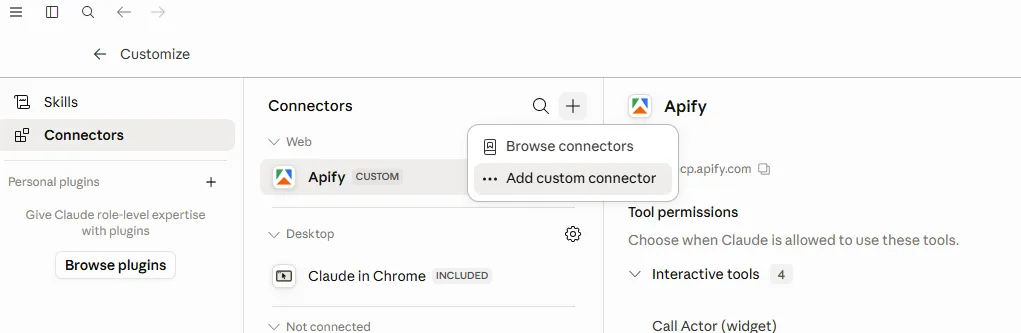
For Claude to communicate with Apify, you need to add the Apify MCP **custom connector**.
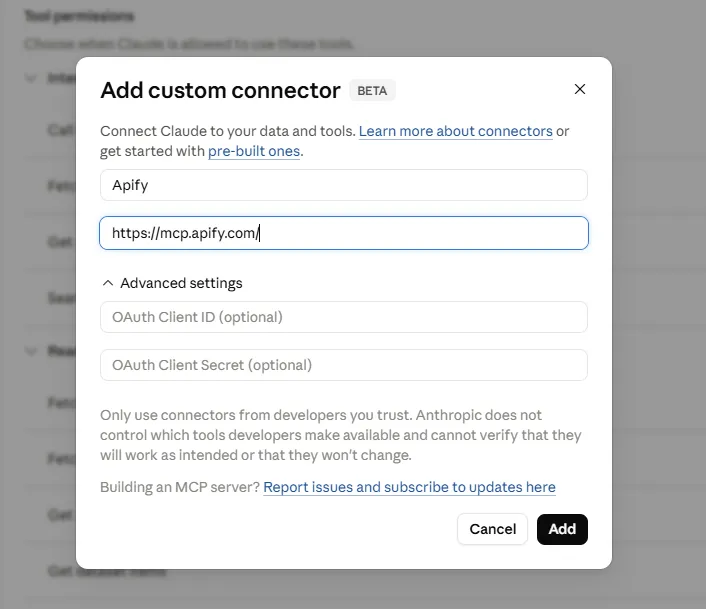
1. Go to Claude's connector settings and select **Add custom connector**.

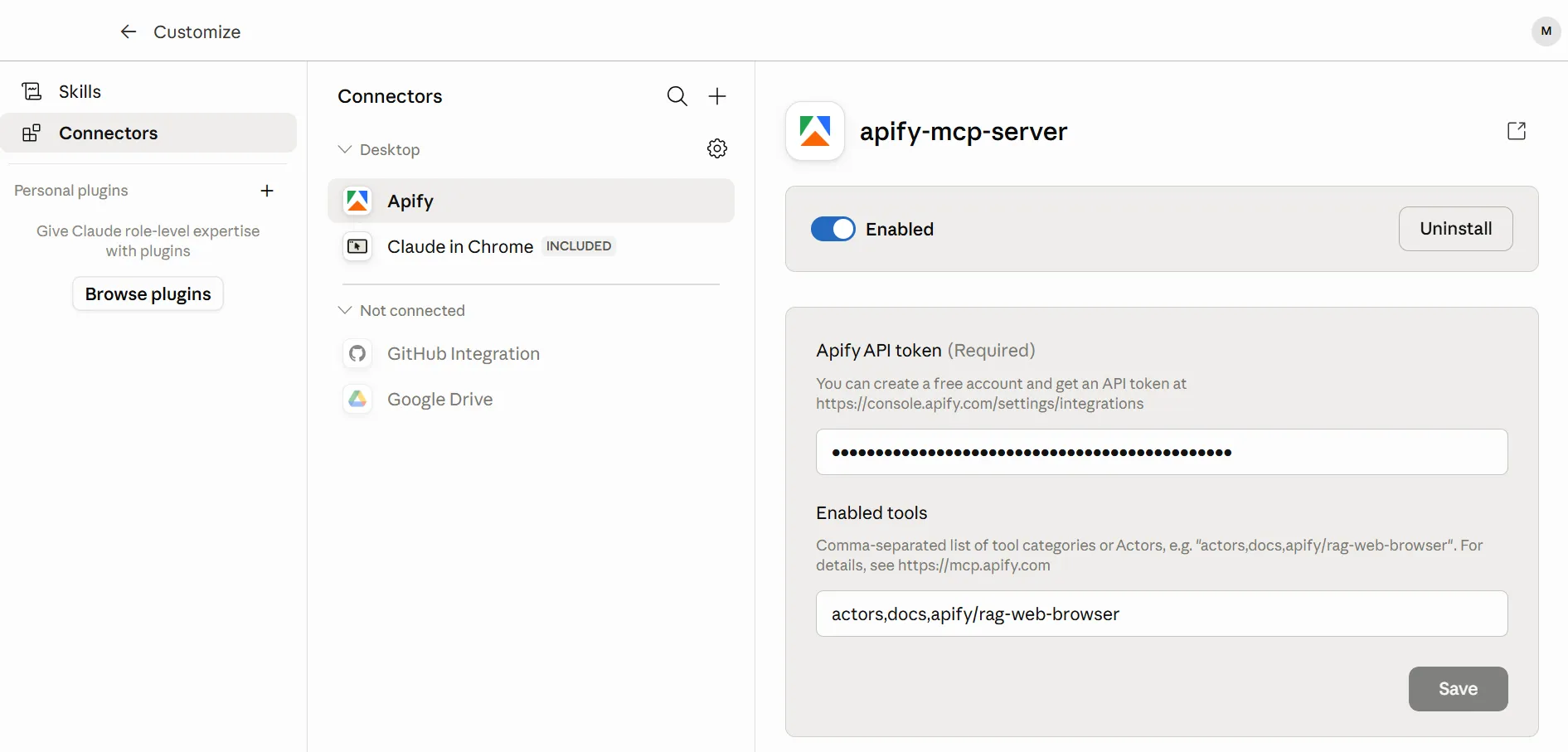
2. Enter the Apify MCP details to complete the connection.

https://mcp.apify.com/?tools=actors,docs,runs,storage,tasks,legaltech/cendoj,legaltech/hacienda,legaltech/tribunal-constitucional,legaltech/tjue,legaltech/fiscalia,legaltech/catastro,legaltech/ine,legaltech/aepd

### **Step 3: Check That Apify Is Available in the Chat**
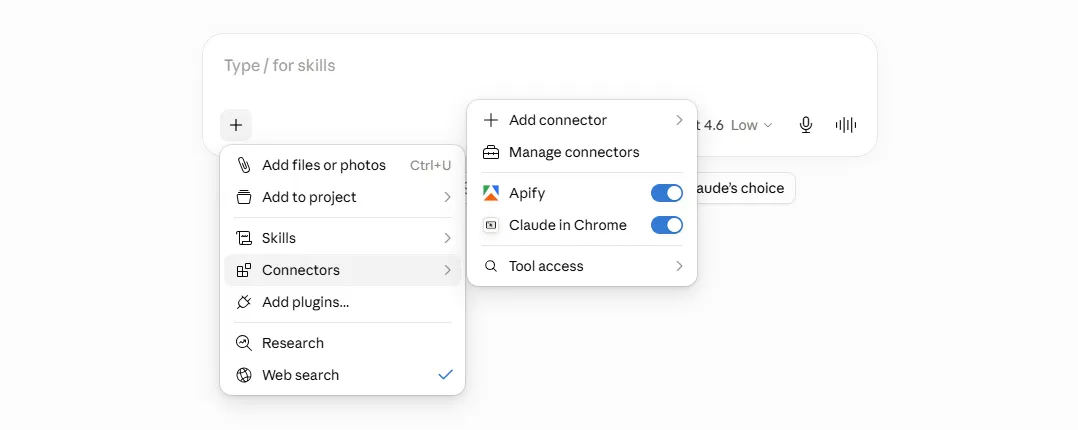
Once the connector is configured, open the Claude chat and verify that Apify appears as an available tool. From this point on, Claude can run Apify actors for you.

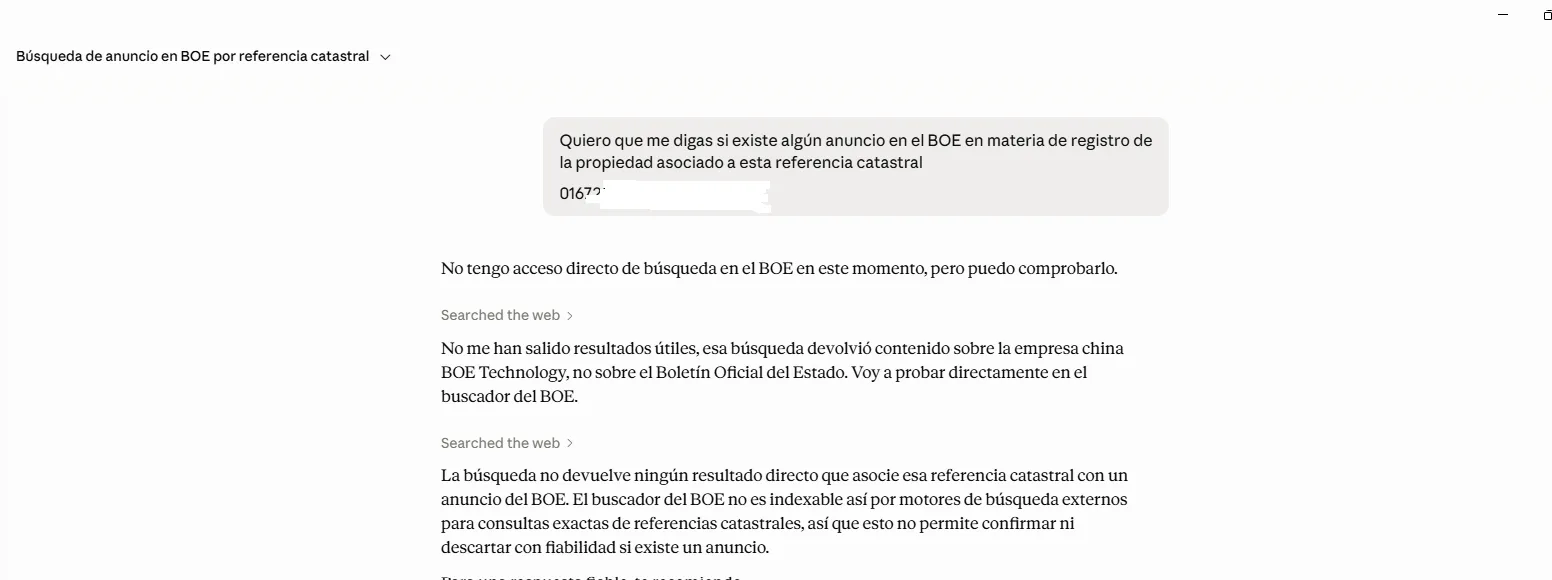
If you ask Claude directly about BOE notices **without** using the actor, it cannot access that up-to-date information and you will not get the results you are looking for.

### **Step 4: Use the `legaltech/registro-propiedad` Actor**
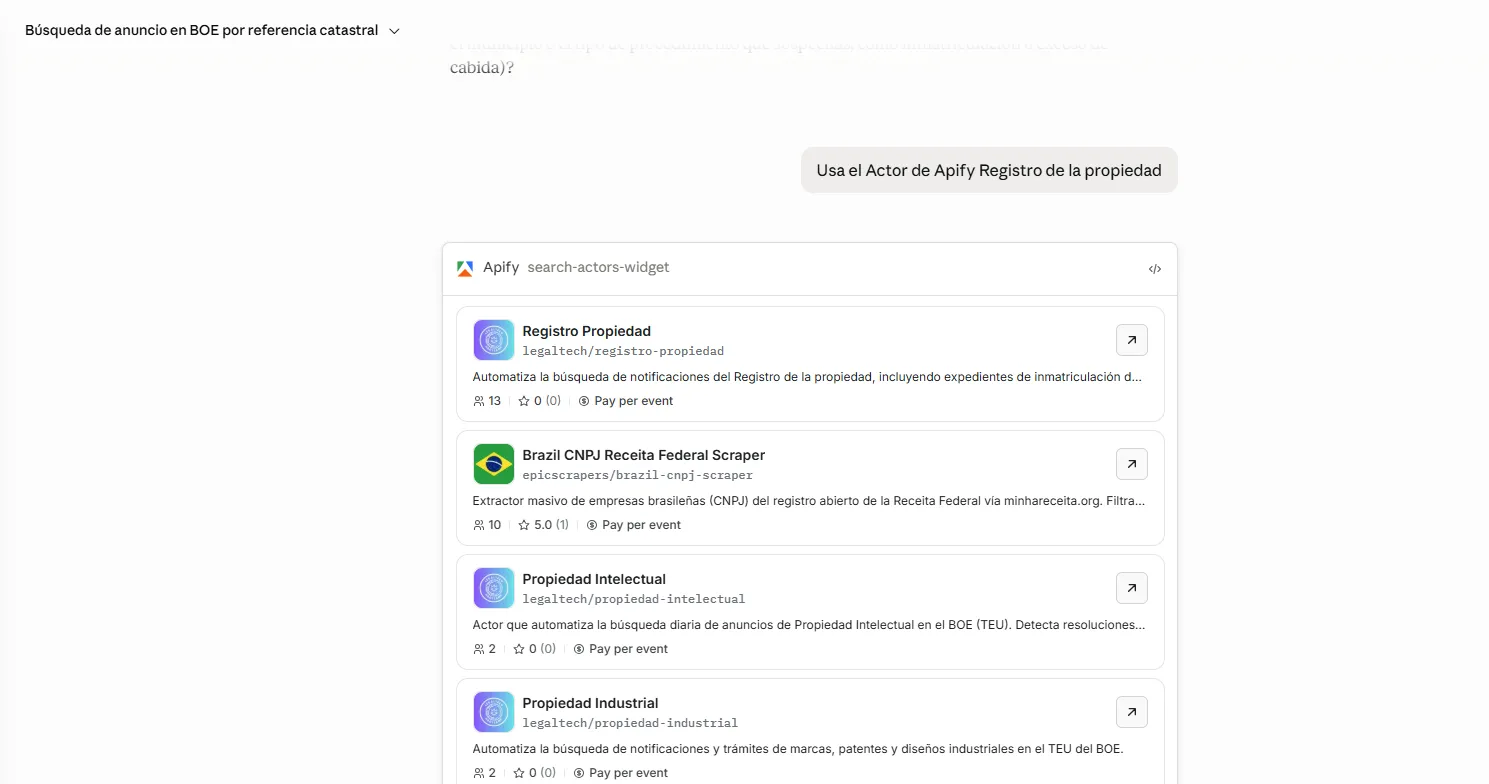
Now for the interesting part. In the chat, send a prompt telling Claude to use the property registry actor:
> **Use the legaltech/registro-propiedad Actor**
Claude will run the [`legaltech/registro-propiedad`](https://apify.com/legaltech/registro-propiedad?fpr=legaltech) actor through Apify and return the BOE notices related to the Property Registry.

### **Step 5: Search and Analyse Property Immatriculation Notices**
In the video below you can see a complete example: how to launch the search, bring back the BOE notices about **property immatriculation**, and analyse them directly from Claude.
<div style="position: relative; padding-bottom: 56.25%; height: 0; overflow: hidden; max-width: 100%; margin: 1.5rem 0;">
<iframe src="https://www.youtube.com/embed/nwJJGgnBBu4" title="Example of searching for property immatriculation notices in the BOE with Claude and Apify" frameborder="0" allow="accelerometer; autoplay; clipboard-write; encrypted-media; gyroscope; picture-in-picture; web-share" allowfullscreen style="position: absolute; top: 0; left: 0; width: 100%; height: 100%;"></iframe>
</div>
## 🚀 Automate the Flow with Make.com
The method above is perfect for one-off queries. But if you want to monitor a **list of references** and have the search run **automatically every day**, the ideal approach is to build an automation flow with **Make.com**.
If you do not have a Make.com account yet, you can sign up using the button below. The free plan gives you 1,000 operations per month, more than enough for this automation.
<br>
<a href="https://www.make.com/en/register?pc=legaltech" target="_blank" rel="noopener noreferrer" style="display: inline-block; padding: 10px 20px; font-size: 16px; font-weight: bold; text-align: center; text-decoration: none; color: #ffffff; background-color: #6B46C1; border-radius: 8px;">
Create a free Make.com account
</a>
<br>
To save you time, you can clone our pre-configured scenario directly into your Make.com account:
<a href="https://eu1.make.com/public/shared-scenario/b8LfYovncRk/registro-de-la-propiedad-notificacione?fpr=legaltech" target="_blank" rel="noopener noreferrer" style="display: inline-block; padding: 10px 20px; font-size: 16px; font-weight: bold; text-align: center; text-decoration: none; color: #ffffff; background-color: #6B46C1; border-radius: 8px;">
Clone Make.com Scenario
</a>
You can find the full step-by-step guide for this automation in our article: [How to Build a BOE Monitoring System for Property Registration Notifications](https://www.legaltechnologybootcamp.com/en/blog/notificaciones-registro-propiedad/).
Published on Tue Jun 16 2026 00:00:00 GMT+0000 (Coordinated Universal Time) by Miguel Gonzalez Herrera
Manually searching the BOE for property immatriculation notices is tedious and error-prone. In this guide you will learn how to connect the Apify MCP to Claude so that the assistant itself runs the legaltech/registro-propiedad actor, extracts the BOE notices, and presents them ready for analysis, all from a simple conversation.
🤖 Tutorial: Use the Apify MCP in Claude Code to Extract BOE Data
Thanks to the Model Context Protocol (MCP), Claude Code can connect to external tools such as Apify. This means that, instead of programming a workflow, you can ask Claude in natural language to run an Apify actor and work with the results.
In this case we will use the legaltech/registro-propiedad actor, which extracts the Property Registry notices published in the BOE, including property immatriculation proceedings.
Step 1: Create an Apify Account
The first thing you need is an Apify account. If you do not have one yet, sign up using the button below. The free plan is sufficient, as it provides monthly usage credits to run the actor.
Once the connector is configured, open the Claude chat and verify that Apify appears as an available tool. From this point on, Claude can run Apify actors for you.
If you ask Claude directly about BOE notices without using the actor, it cannot access that up-to-date information and you will not get the results you are looking for.
Step 4: Use the legaltech/registro-propiedad Actor
Now for the interesting part. In the chat, send a prompt telling Claude to use the property registry actor:
Use the legaltech/registro-propiedad Actor
Claude will run the legaltech/registro-propiedad actor through Apify and return the BOE notices related to the Property Registry.
Step 5: Search and Analyse Property Immatriculation Notices
In the video below you can see a complete example: how to launch the search, bring back the BOE notices about property immatriculation, and analyse them directly from Claude.
🚀 Automate the Flow with Make.com
The method above is perfect for one-off queries. But if you want to monitor a list of references and have the search run automatically every day, the ideal approach is to build an automation flow with Make.com.
If you do not have a Make.com account yet, you can sign up using the button below. The free plan gives you 1,000 operations per month, more than enough for this automation.
How to Use the Apify MCP with a Local Model (Ollama) to Search CENDOJ Rulings
Learn how to search Spanish CENDOJ rulings in natural language with a language model that runs on your own computer: Ollama, AnythingLLM and the Apify MCP, without sending your conversations or documents to Claude or ChatGPT.
How to Use the Apify MCP in Claude to Find Which Cadastral Parcel You Are In and Look Up Its Data
Learn how to connect the Apify MCP to Claude and use the legaltech/catastro actor to get a parcel's cadastral reference from your coordinates or an address, and look up its official data without going through the Spanish Cadastre website.
How to Use the Apify MCP in Claude to Cross-Reference Spanish Mortgage and Foreclosure Data from the INE
Learn how to connect the Apify MCP to Claude and use the legaltech/ine actor to cross-reference Spain’s Mortgage Statistics and Mortgage Foreclosure Statistics from the INE, and reach the provincial figure no article publishes.
How to Use the Apify MCP in ChatGPT to Access LegalTech Legal Connectors
Learn how to use LegalTech legal connectors from a free ChatGPT account: enable Developer Mode, add the Apify MCP (@Apify), and query Fiscalía, CENDOJ, Hacienda, Property Registry, and more directly from the chat.
How to Use the Apify MCP in Claude to Query Doctrine from the Spanish State Prosecutor Office
Learn how to connect the Apify MCP to Claude and use the legaltech/fiscalia actor to search Circulares, Instrucciones and Consultas from the Spanish State Prosecutor Office directly from the chat, simply by asking in natural language.
How to Use the Apify MCP in Claude to Query Spanish Tax Authority Administrative Doctrine
Learn how to connect the Apify MCP to Claude and use the legaltech/hacienda actor to query TEAC tax administrative doctrine, DGT binding rulings, and historical resolutions directly from the chat.
We use Google Analytics cookies to analyze traffic and improve your experience. You can accept them, reject them, or read our Privacy & Cookies policy. Privacy & Cookies.